
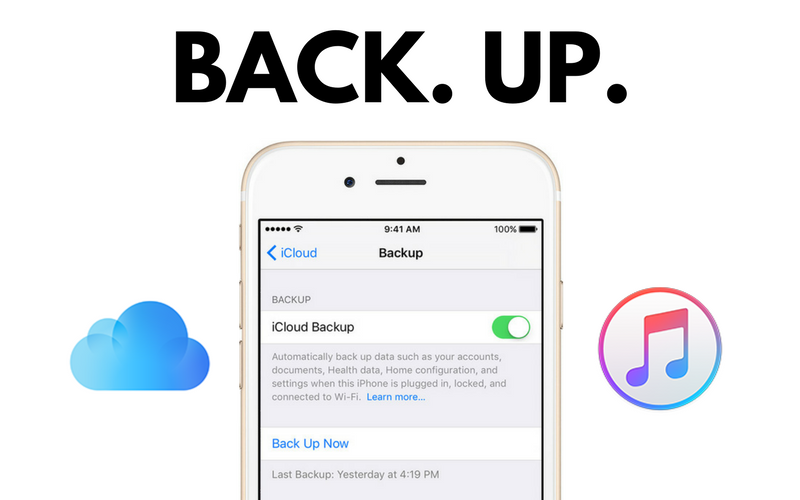
Top 9 Steps to Back Up Your iPhone or iPad to iTunes
Copy this code to embed the top 10:
Explore our community's take on How to backup iPhone/iPad to iTunes?. This list in the General category is ranked entirely by community votes — making it a genuine reflection of collective opinion.
Have a different perspective? Sign up and cast your votes to influence the rankings.
-
10

iTunes (Latest Version)
Install or update to the latest version of iTunes on your Windows PC or macOS Mojave and earlier to ensure compatibility and a smooth backup process.
-
20

Lightning to USB Cable
Use an official or certified Lightning to USB cable to securely connect your iPhone or iPad to your computer.
-
30

Trust This Computer Prompt
When prompted on your device, tap “Trust” to authorize the computer and allow iTunes to access your data.
-
40

Device Icon in iTunes
Click the small device icon that appears in the upper-left corner of iTunes to access your iPhone or iPad summary page.
-
50

Summary Tab
Navigate to the Summary tab, where you can manage backups, storage, and device settings in one central location.
-
Advertisement
-
60

This Computer Backup Option
Under the Backups section, select “This Computer” to store the backup locally instead of using iCloud.
-
70

Encrypt iPhone Backup Option
Enable “Encrypt iPhone Backup” to securely store sensitive data such as passwords, Health data, and Wi-Fi settings.
-
80

Back Up Now Button
Click “Back Up Now” to begin the manual backup process and monitor progress at the top of the iTunes window.
-
90

Finder (macOS Catalina and Later)
On macOS Catalina or newer, use Finder instead of iTunes to back up your device through the Locations section in the sidebar.
More Lists You Might Like






Frequently Asked Questions
How do I back up my iPhone or iPad to iTunes on a Windows PC or older macOS?
Can I encrypt my iTunes backup for extra security?
Why don’t I see iTunes on my Mac to back up my device?
How is the ranking of backup methods on this list determined?
Missing something?
Suggest an addition. Submissions are reviewed before appearing on the list.